Filter Obsidian Bases by folder, status, and tag
Use a folder rule to define the collection, then a view-specific rule to choose what to show. For “active or queued projects,” the status alternatives must sit inside the folder restriction.
A small collection with a useful trap
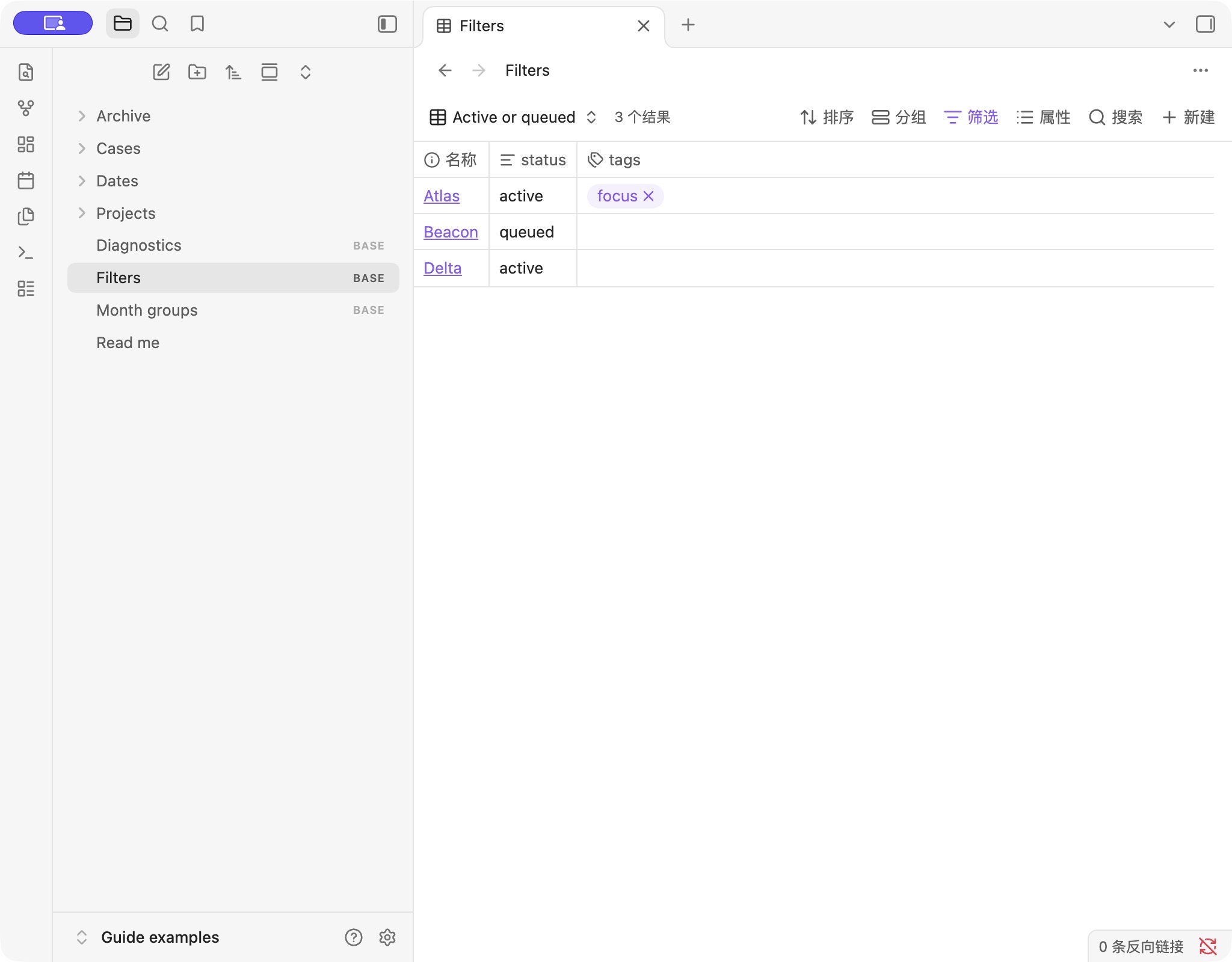
Our practice vault contains the following synthetic files. The goal is to show Markdown notes in Projects whose status is active or queued:
| File | Status | Should appear? |
|---|---|---|
| Projects/Atlas.md | active | Yes |
| Projects/Beacon.md | queued | Yes |
| Projects/Cedar.md | done | No |
| Projects/Drafts/Delta.md | active | Yes |
| Archive/Echo.md | active | No |
| Projects/reference.txt | — | No |
Echo is the trap: matching the status is not enough, because it is outside Projects. Delta demonstrates that the folder rule used here also includes a nested folder.
Download the filter examples (.zip) ↓
Unzip, open Guide examples as a separate vault in Obsidian, then open Filters.base. No community plugins are needed. The download also contains date and formula exercises, kept outside Projects so they cannot enter this table.
1. Put the collection boundary in All views
Open Filter and use the All views section for two conditions that must both hold: the file is in Projects, and its extension is md. This keeps all three views in our example restricted to project notes.
Use This view for the active-or-queued condition. The all-views restriction still applies. Switching to another view may remove that view's status rule, but it does not remove the shared folder restriction.
Useful check: switch to the sample's All project notes view. It should show Atlas, Beacon, Cedar, and Delta. Echo and the text attachment should still be absent.
2. Keep the alternatives together
In the active view, use an “any” group for the two statuses: active or queued. The folder and extension rules are required; the two status rules are alternatives. The equivalent expression is:
file.inFolder("Projects") && file.ext == "md" && (note["status"] == "active" || note["status"] == "queued")The parentheses make the intended grouping explicit. Without the right grouping, an OR branch can allow files you meant to exclude. Start with the sample and check Echo: it should never enter the project result merely because its status is active.
This is a filter expression, not a display formula. If you want to use it directly, place it in the advanced filter editor. Do not put the whole downloadable file into that expression field.
What if you mean only the immediate folder?
Our file.inFolder("Projects") exercise includes Delta in Projects/Drafts. If that is not your intended collection, use a folder-property comparison for the exact path and validate it against a nested-note example. This download intentionally teaches the inclusive folder case.
The complete working base
The download includes this configuration as Filters.base. It defines the shared restriction and three selectable views. You can inspect it in a plain-text editor; to use it, save it as a .base file at the practice vault root and open it in Obsidian.
filters:
  and:
    - 'file.inFolder("Projects")'
    - 'file.ext == "md"'
views:
  - type: table
    name: Active or queued
    filters:
      or:
        - 'note["status"] == "active"'
        - 'note["status"] == "queued"'
    order:
      - file.name
      - note.status
      - note.tags
  - type: table
    name: Focus tag
    filters: 'file.hasTag("focus")'
    order:
      - file.name
      - note.status
      - note.tags
  - type: table
    name: All project notes
    order:
      - file.name
      - note.status
If moving the base into another vault, update the folder path to match the notes' location. Check for existing filenames before copying the practice notes. The configuration does not create the underlying project notes for you.
3. Make a separate focus-tag view
Atlas carries focus in its tags property; Delta has #focus in the note body. The sample's Focus tag view uses:
file.hasTag("focus")In our practice vault it shows Atlas and Delta. Echo also has the tag, but remains excluded by the all-views Projects filter. This is a quick way to check that your shared boundary is still active.
Keep this as a separate view when it answers a different question from status. A focus view does not automatically mean “active or queued”; add that restriction only if you want it. We have not tested nested-tag matching rules in this exercise.
Diagnose missing or unexpected rows
- Check both filter scopes. An all-views rule can exclude a file even when the current-view rule matches it.
- Check the source note. Compare the exact status value and file location with the sample.
- Check the AND / OR group. Require the folder; make status values alternatives inside it.
- Check other view controls. Clear a search, inspect any result limit, and look for hidden or collapsed groups.
- Test one change at a time. In the practice vault, change Cedar from done to active. It should join the Active or queued view, while Echo should remain excluded.
Filtering a view is a way to choose what is displayed, not a privacy boundary between people who can access the vault files.
Testing and references
On October 31, 2026, in Obsidian 1.14.5 on macOS, Active or queued showed Atlas, Beacon, and Delta; Focus tag showed Atlas and Delta; All project notes showed those three plus Cedar. Echo and reference.txt were excluded. Changing Cedar from done to active added it to Active or queued. The download retains the initial done value. Other versions and mobile Obsidian have not been tested.
Official documentation checked October 31, 2026: filter scopes and controls, filter configuration, and file functions. The dataset and expected row sets above are our own.
Troubleshoot property references and types · Group dated results by month · Testing method