Format dates and group Obsidian Bases by month
Create a year-month formula such as 2026-01, then group your table by that formula. Keeping the year prevents January entries from different years merging together.
The result to aim for
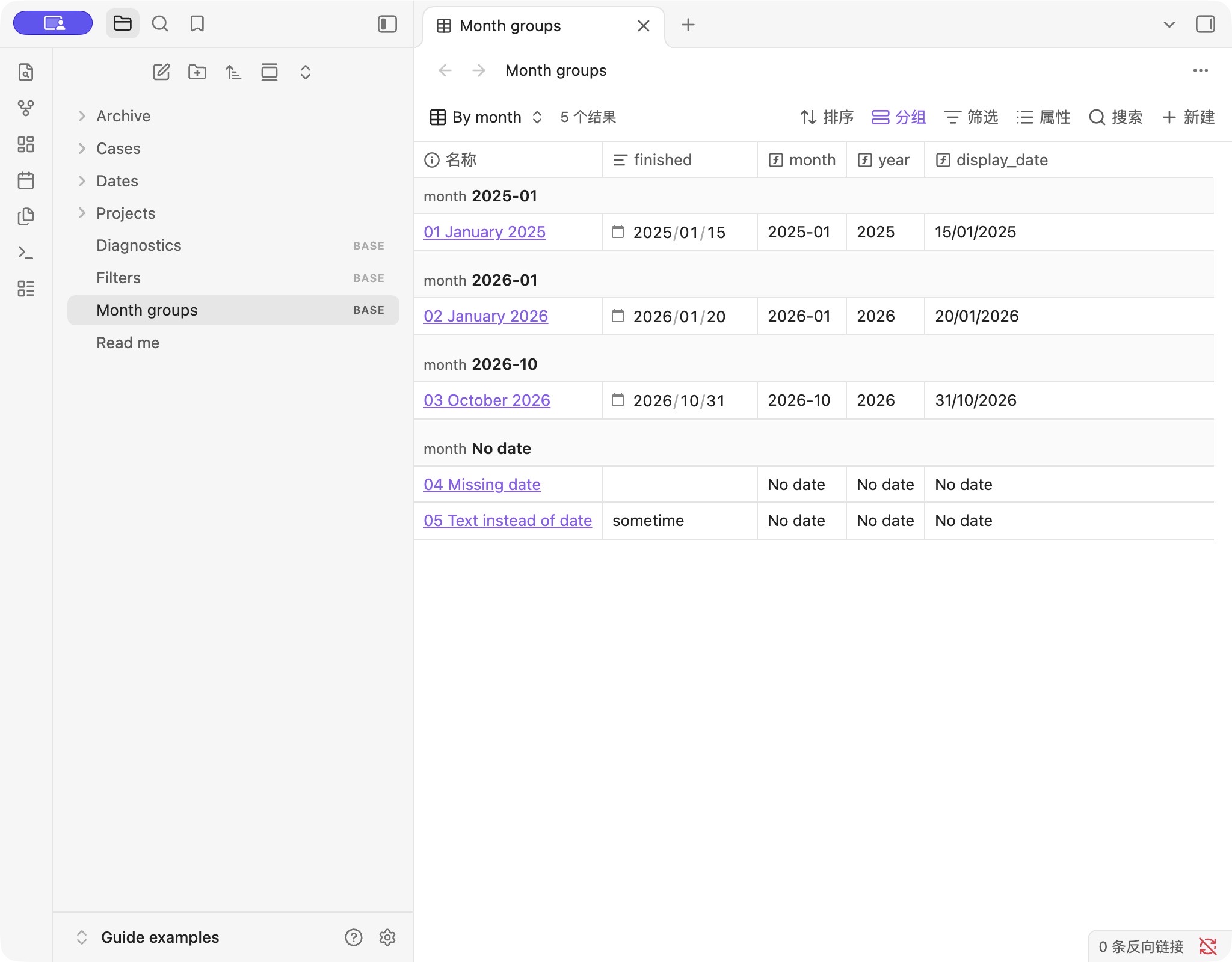
In our practice table, two January dates belong to different groups:
| finished | Month group | Display date |
|---|---|---|
| 2025-01-15 | 2025-01 | 15/01/2025 |
| 2026-01-20 | 2026-01 | 20/01/2026 |
| 2026-10-31 | 2026-10 | 31/10/2026 |
| Missing or non-date input | No date | No date |
The month key is text with a fixed year-first format. Alphabetical ascending order puts these dated groups in chronological order. The fallback label is a separate group, not a date.
Download the month-group examples (.zip) ↓
Unzip, open Guide examples as a separate Obsidian vault, and open Month groups.base. Its five synthetic notes include the three dates above, one absent date, and one deliberately incorrect text value. Enable the built-in Bases plugin if needed.
1. Start with one Date property
For a finished-book log, add a property named finished to each book note and choose the Date type. For example, a note in Source mode can begin:
---
finished: 2026-10-31
---

# A finished book
The field means the day you finished the item, not the file's modification time. Use one date per note for this walkthrough. A list of several dates needs a different design; this formula does not split a note into multiple rows.
In your base, show the original finished column while configuring the formula. This makes mistakes easier to spot. The practice base is restricted to the Dates folder; in your own reading vault, keep your existing Books filter.
2. Add the month key
Open Properties → Add formula, name it month, and paste:
if(note["finished"].isType("date"), note["finished"].format("YYYY-MM"), "No date")This sample intentionally accepts Date values only. An absent field or text such as sometime goes to No date. If a value that looks like a date lands there, inspect its property type before changing the expression.
Replace finished in the reference if your stored key is different. Changing a table column's display name does not rename that key. If the editor rejects the formula, use the property and type checks.
3. Group by the formula, then sort the rows
- Show the new
monthformula in Properties. - Open Group and choose the formula as the grouping property.
- Choose ascending order for oldest months first, or descending for newest first.
- Use Sort on the original
finishedproperty to arrange entries within each group.
Grouping and row sorting solve different problems. A month heading tells you which bucket an entry belongs to; sorting the original date determines its position among other entries in the same month.
Do not use only MM or a month name if you need separate years. Both January examples would then have the same grouping value. If you are deliberately comparing seasonal patterns across years, merging months may be useful, but that is a different question.
Year groups and a readable display date
Group by year instead
Create a formula named year:
if(note["finished"].isType("date"), note["finished"].format("YYYY"), "No date")Then select that formula in Group. The two 2026 notes share a group; the 2025 note remains separate. This provides an alternative grouping, not a second nested group in the same view.
Change how a date looks
Create a separate display_date formula:
if(note["finished"].isType("date"), note["finished"].format("DD/MM/YYYY"), "No date")In our test, October 31 appears as 31/10/2026. This numeric display avoids relying on localized month names. The formula returns display text and does not rewrite the original Date property. Sort by the original date when you need chronological day order, rather than by a day-first text label.
The capital letters in these examples matter. Copy the tested formats as written. For additional patterns, consult the Moment format reference linked by Obsidian's function documentation.
When the grouping looks wrong
- Everything says No date: check the exact field key and Date type on one note.
- A month is missing: look for filters and manually hidden groups before editing dates. Try an automatic group order to show all groups.
- The source date still looks unchanged: expected; enable the formula column to see the formatted text.
- Rows appear in an odd order: inspect Sort separately from Group. Use the original date for day-by-day order.
- You want file creation months: that uses file metadata rather than this guide's finished-book date; do not silently substitute the two.
Testing and references
On October 31, 2026, we opened the downloadable month table in Obsidian 1.14.5 on macOS. We observed separate 2025-01, 2026-01, and 2026-10 groups, matching year values and DD/MM/YYYY display text. Missing and text inputs both appeared under No date. The interface was in Chinese; the formulas shown here use numeric date formats. Other versions and mobile Obsidian have not been tested.
Official references checked October 31, 2026: date formatting functions, group and sort controls, and property types. The sample vault and screenshot are our own. We have not tested timezone conversions, date-time inputs, lists of dates, or countdown arithmetic in this guide.