Obsidian Bases progress bar
Map your number properties. Check the result. Copy the formula into your base.
Properties
01 / INPUTMatch the names in your notes exactly.
Source properties must be numbers.
Try example values Preview only
These values only change this preview and your example note. In Bases, the formula reads each note’s properties.
Table preview
02 / RESULT| File | completed | total | Progress |
|---|---|---|---|
| Example note | 6 | 10 | ▰▰▰▰▰▰▱▱▱▱ 60% |
A real zero shows 0%. Missing or non-number values show —.
Formula
View generated formula
Ready to paste into Bases → Properties → Add formula.
SETUP GUIDE
Add it to your base
Use the built-in Bases plugin.
No community plugin needed.
Add number properties
In a note, add your chosen properties and set their type to Number. Enter numeric values without a % symbol.
Create a formula property
Open your base and choose Properties → Add formula. Name it “Progress” and paste into the Formula field.
Show the Progress column
Close the editor and enable the new column. Change a note’s number to update the bar. Missing data displays a dash.
See the steps in Obsidian 3 screenshots
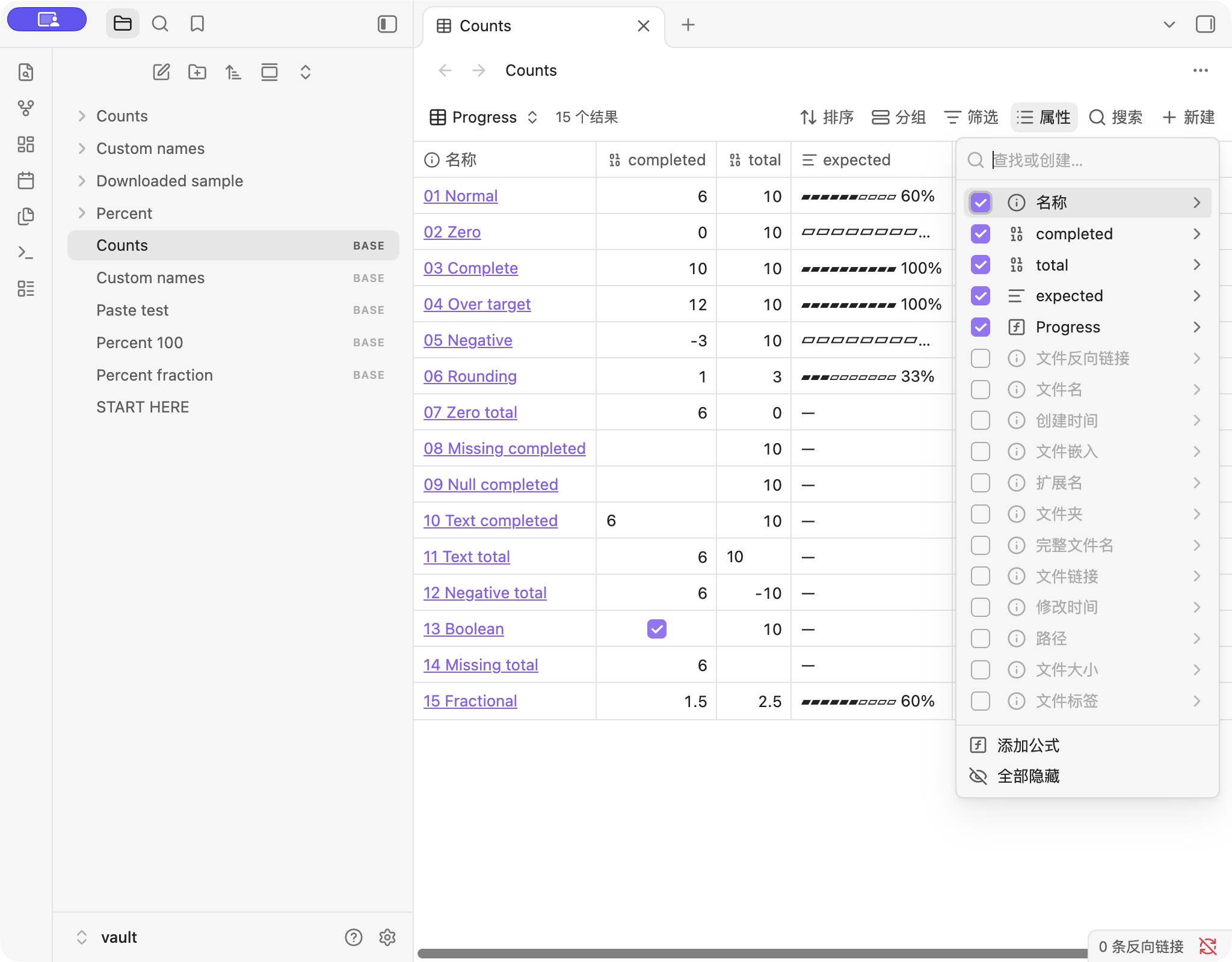
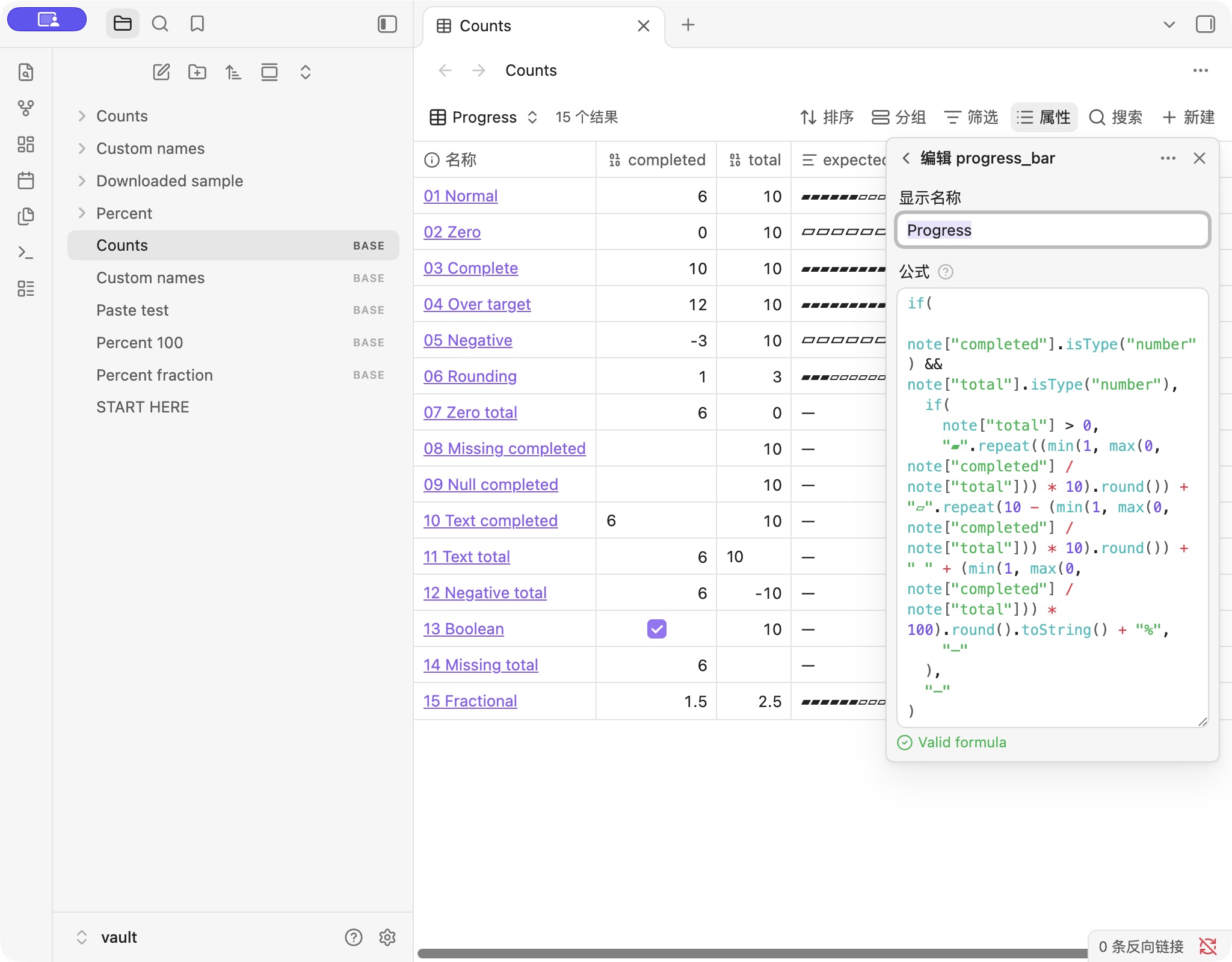
Real screenshots from our synthetic test vault in Obsidian 1.14.5 on macOS. The app is in Chinese; English control names are given below. Select an image to open it full size.
Open Properties (属性) above the table. Choose Add formula (添加公式) at the bottom of the menu.
Name the new formula Progress. Paste the copied expression into Formula (公式), the large editor below the name. Check for Valid formula.
Close the editor. In Properties, select the checkbox beside Progress (shown in screenshot 1). The result below shows a source value changed to 8 / 10 → 80%.
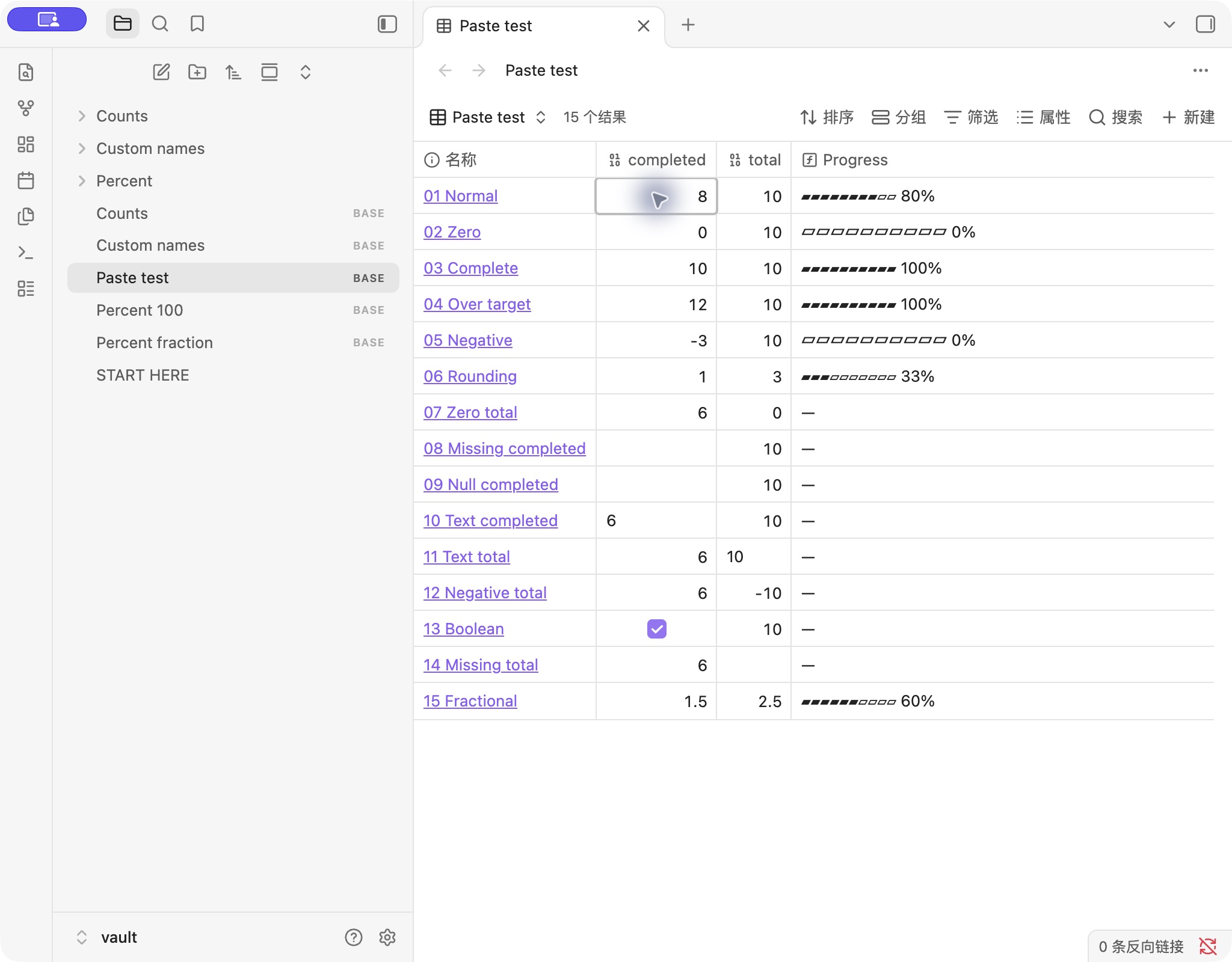
Menu and editor captured October 27, 2026; result captured October 24, 2026. Screenshots use test notes, not a connected personal vault.
EXAMPLE FILES
Try your formula in Obsidian
The two files below use your current property names and preview values. Download both into a new folder, then open that folder as a vault.
Your current configuration
Fixed validation vault
A separate set of 28 sample results, including zero, missing data and custom names. This ZIP does not use your inputs above.
Download fixed test vault (.zip)REFERENCE
Behavior & testing
What this formula does, and where its limits are.
Missing values, zero & over-target numbers
Missing values, text values, or a total of zero or less show —. Valid negative progress is capped at 0%; progress above the target is capped at 100%. The bar has 10 segments, rounded to the nearest segment; the label rounds to a whole percent.
Does this count checkboxes in a note?
This tool reads numeric note properties. It does not scan task checkboxes in the note body. Update your number properties to change the progress bar.
Where should I paste the formula?
Paste only into a Bases formula property, not into a note’s property value or a Dataview block. Use the original property names, including capitalization. Display names in a table can be different.
What has been tested?
Tested in Obsidian 1.14.5 on macOS on October 24, 2026: 28 sample results checked across counts, both percentage ranges, and custom property names. The original generator’s copy, paste, and note-update flow was checked in that version. Other Obsidian versions and mobile apps have not been tested.
GUIDES
Build a reading tracker
Go from book notes to a working bookshelf.
A complete workflow with page-count properties, a progress formula, and a downloadable reading vault.
WORKSPACE HELP