CARDS & ATTACHMENTS
Obsidian Bases Cards: Add Cover Images and Fix Blank Cards
Add a quoted attachment link such as cover: "[[Assets/atlas.svg]]" to a note, then select cover as the Cards view's Image property. Merely placing an image in the note body does not configure this explicit-cover workflow.
Start with two working covers and one deliberate blank
A card gallery is useful when the image helps you recognize a note: book covers, project sketches, or reference sheets. This example keeps that connection explicit with one cover property per note.
Open the unzipped folder as a separate vault and open Cards.base. Atlas field notes and Beacon field notes have local cover images. No cover yet deliberately has no cover value and remains in the collection with an empty image area.
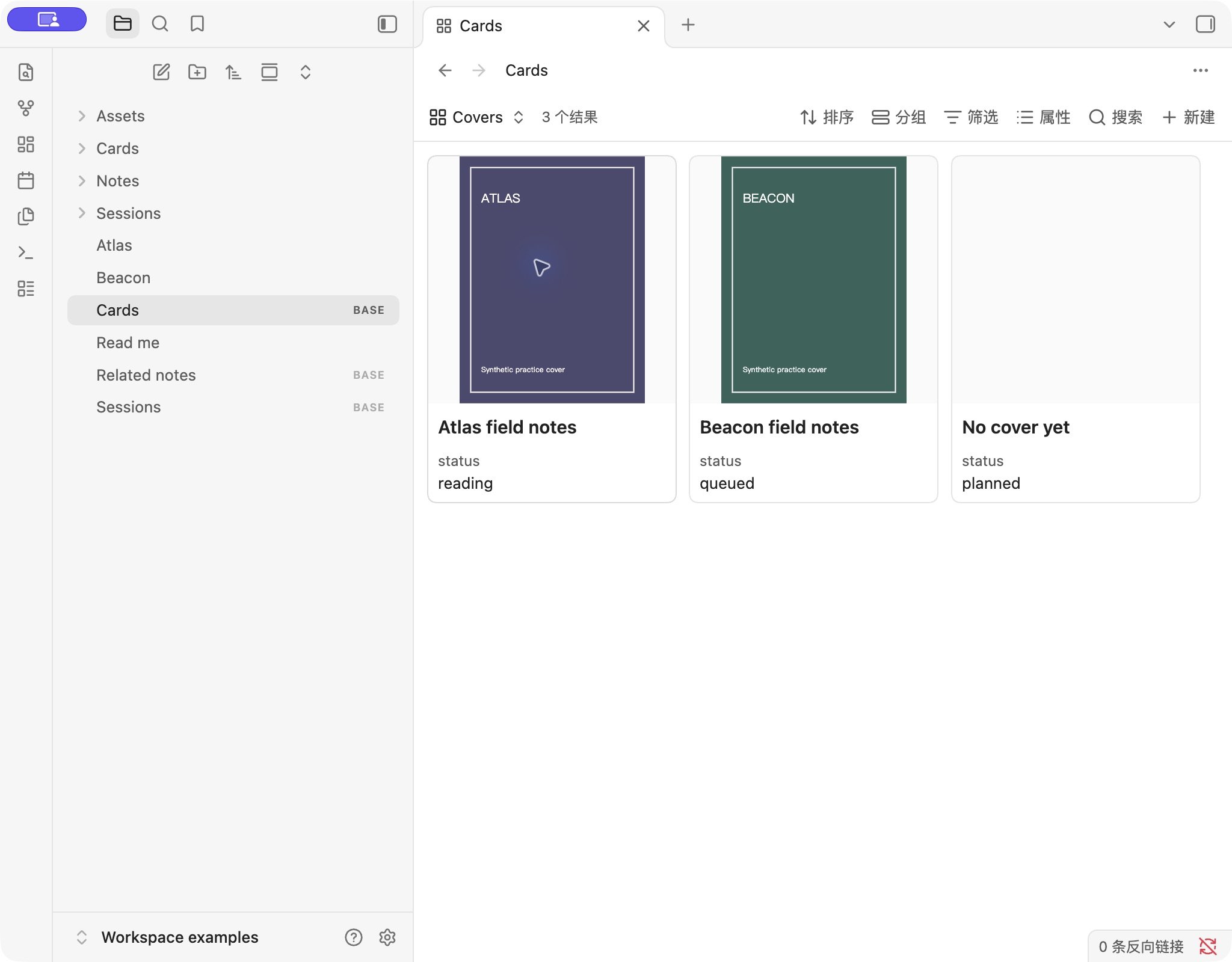
The colored covers are original geometric SVG test assets included in the download. They are not third-party book artwork, and the example does not request external images.
1. Store a link to an existing image
Keep an image in the vault's Assets folder. Create a note under Cards and use the following in Source mode:
---
cover: "[[Assets/atlas.svg]]"
status: reading
---

# Atlas field notes
The outer quotes preserve the internal link as a YAML value. In the normal Properties editor, you can enter or select the internal link without writing the entire YAML block. Use Obsidian's link suggestions to pick the actual attachment, especially when files share names.
For a normal photo, the equivalent would be cover: "[[Assets/my-photo.jpg]]", provided that file exists. The example uses one attachment link, not a list of images. It also uses [[...]] in the property, rather than a body-style ![[...]] embed.
2. Tell the Cards view which property supplies the image
- Open your base and use the view menu to choose or create a Cards layout.
- In that view's settings, select cover for Image property.
- Choose Contain if you want to see the full cover, including its edges.
- Use card size and image aspect ratio to adjust the available space. These are layout choices, not fixes for a broken attachment link.
Cover fills the image area and may crop an edge. Contain preserves the whole image and can leave unused space. If a title or a diagram border is missing, check this setting before changing the source image.
For the downloadable collection, this complete configuration selects the cover field and uses Contain:
filters: 'file.inFolder("Cards") && file.ext == "md"'
views:
  - type: cards
    name: Covers
    order:
      - file.name
      - note.status
    image: note.cover
    imageFit: contain
  - type: table
    name: Check properties
    order:
      - file.name
      - note.cover
      - note.status
Save it as Cards.base, not inside a note's property block or the Formula field. The folder and extension filter keeps the rows limited to Markdown notes in Cards. It excludes the SVG files from becoming extra cards.
Diagnose a blank card in a fixed order
| What you see | Check next |
|---|---|
| No card for the note | Check folder, file type, and status filters. This is a row-selection problem. |
| Card title appears; image is empty | Check that cover exists on that specific note and points to an existing attachment. |
| Link opens the image; card still empty | Check the active Cards view's Image property. Showing cover as ordinary metadata is a separate setting. |
| Image appears but an edge is cut off | Switch Image fit from Cover to Contain. |
| Works in the sample but not after copying | Copy Assets too, then check folder filters, renamed files, and link targets. |
The sample's Check properties table is a useful comparison view: it shows the exact cover value alongside each title. No cover yet provides a known blank case, so you can distinguish missing data from a layout failure.
Official documentation also allows external image URLs and color values. Those are separate inputs: a remote image can depend on network access or permissions. This guide verifies local attachments only. It does not promise video thumbnails, PDF page covers, or automatic first-image extraction.
Use the cover field in your own collection
Start with one note and one image before importing a whole library. Confirm that the attachment opens and the Cards view displays it. Then extend to other notes, using the same field name and a consistent attachment location.
If you already use the reading tracker, add a cover property to a book note and create a Cards view in the same base. Keep the page-count fields for the existing progress workflow. A cover image adds a visual entry point; it does not change how progress is calculated.
For notes without artwork, you can keep the deliberate blank or use the standard table view. Do not delete useful notes just to make every card look identical. See the filter guide if the problem is which notes enter the collection.
Testing and references
On November 1, 2026, we opened the sample in Obsidian 1.14.5 on macOS. Cards displayed three notes: two local SVG covers with their full borders visible under Contain, and one note with no cover. The matching table exposed the attachment properties. Other versions, mobile, remote URLs, and automatic cover formulas were not tested.
References: Cards view and image settings and note properties. Read our testing method.