TOTALS & COUNTS
Obsidian Bases Summaries: Sum, Average, and Count
To total a numeric column, right-click its header, choose Summarize…, then Sum. A summary works across the rows in a view; a normal formula calculates a value for one row.
A five-session example you can check by hand
Use one note per study or work session, with a numeric minutes property, a text topic, and a checkbox complete. This gives us a small dataset where every total has an explanation.
Open the extracted folder as a separate Obsidian vault, then open Sessions.base. Its three views demonstrate totals, grouped totals, and a filtered average.
| Session | Topic | Minutes | Complete |
|---|---|---|---|
| 01 Research | Research | 25 | Yes |
| 02 Reading | Research | 35 | Yes |
| 03 Draft | Writing | 20 | No |
| 04 Zero | Writing | 0 | No |
| 05 Missing | Writing | Not recorded | No |
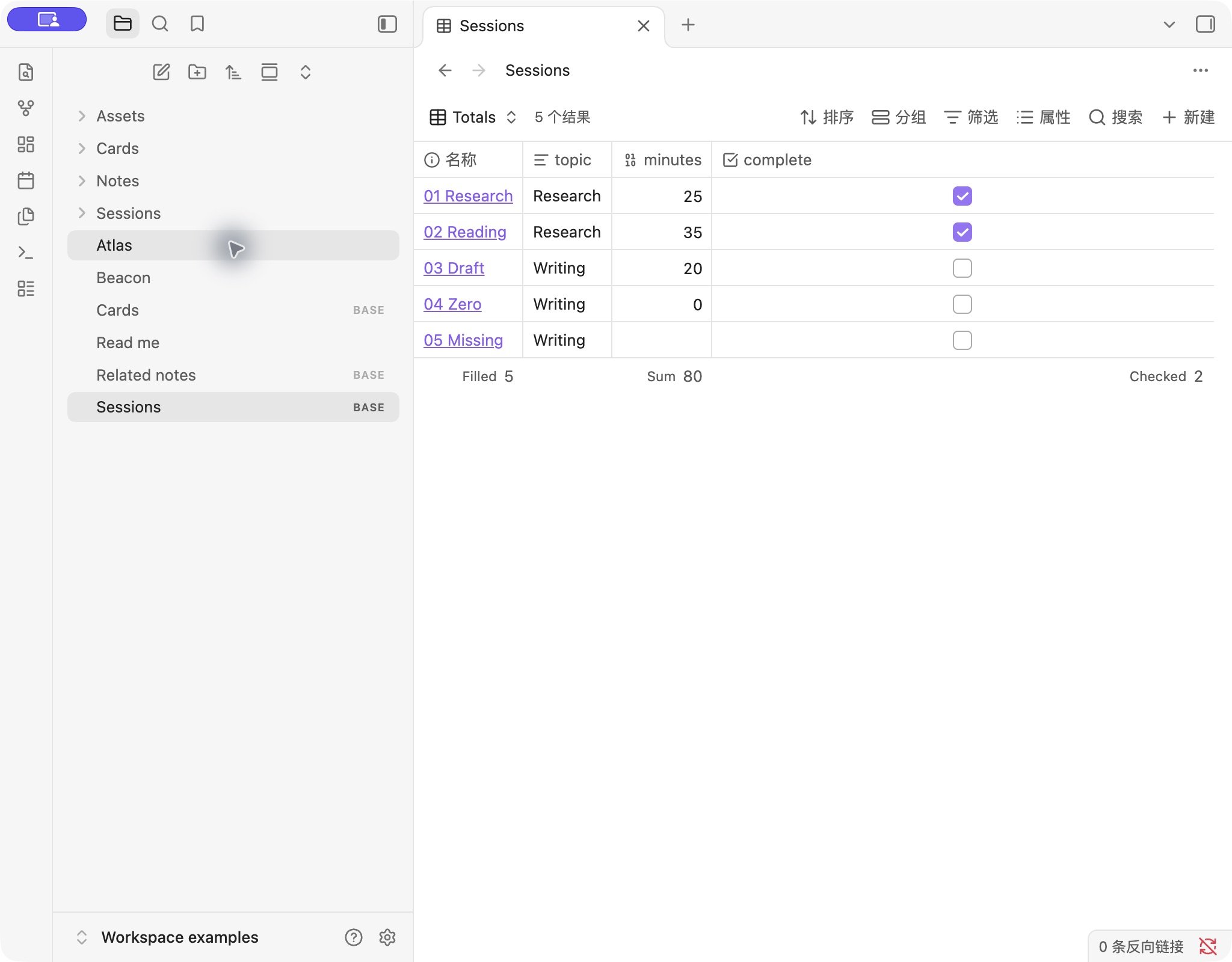
The Totals view shows 80 minutes, 2 checked, and 5 file names filled. The missing time is still a note, but it is not a recorded zero-minute session.
1. Add a summary to the right column
- In a table view, show the property you want to summarize using Properties.
- Right-click the
minutescolumn header and choose Summarize… → Sum. - On
complete, choose Checked. - On the file-name column, choose Filled to count the rows in this example.
These choices serve different questions. Sum answers “how many minutes?” Checked answers “how many session notes are complete?” Filled on file names answers “how many notes are here?” It does not count checkboxes in the body of a note.
If the numeric options are missing or values behave unexpectedly, first check the property type. Store minutes as numbers such as 25, not text such as 25 min. Put the unit in a column label or in the surrounding description. The input-type checks help diagnose mixed data.
2. Compare a total with grouped and filtered results
Switch to By topic. Research totals 60 and Writing totals 20. Grouping makes those subsets visible while the total remains 80 in this sample. If you already have a date property, the same idea can complement month-based groups.
Switch to Completed average. Its filter keeps only the two checked notes, so the average is (25 + 35) / 2 = 30. It is not an average across all five notes. The view's membership and the chosen aggregation are both part of the result.
To test an update, return to Totals and change 01 Research from 25 to 30 minutes. The sum becomes 85. Restore 25 to return to the starting data. The downloadable vault keeps the original values.
Missing is not zero. A session with no recorded duration may need follow-up. Filling every blank with zero just to simplify arithmetic changes the meaning of your data. Decide what missing means before reporting an average.
3. Inspect the complete Base configuration
The file below is the exact starting configuration in the download. Save it as Sessions.base. Keep the Sessions folder name or adjust the folder filter.
filters: 'file.inFolder("Sessions") && file.ext == "md"'
views:
  - type: table
    name: Totals
    order:
      - file.name
      - note.topic
      - note.minutes
      - note.complete
    summaries:
      note.minutes: Sum
      note.complete: Checked
      file.name: Filled
  - type: table
    name: By topic
    groupBy:
      property: note.topic
      direction: ASC
    order:
      - file.name
      - note.topic
      - note.minutes
    summaries:
      note.minutes: Sum
  - type: table
    name: Completed average
    filters: 'note["complete"] == true'
    order:
      - file.name
      - note.minutes
    summaries:
      note.minutes: Average
Each view has its own summaries mapping. That is why one view can sum minutes while another averages it. The keys identify the column being summarized. These settings belong to the view configuration; they are not formulas to paste into Properties → Add formula.
Why a summary differs from the number you expected
- A filter changed the rows. Check global rules and the active view's rules before checking the arithmetic.
- You counted filled values instead of notes. Filled on an optional field can be smaller than Filled on file names.
- You are looking at one group. A Research subtotal is not the whole table's total.
- The values are display text. A string containing a percent sign or a bar is useful for reading, but is not the numeric property you should total or average. Keep a separate numeric formula when needed.
- You expected a row formula to read the summary. A column summary is not automatically a new property on every note. This tutorial does not create a cross-row rollup or a percentage of the grand total.
Summing percentages usually does not answer a useful completion question. For example, averaging book percentages gives every book equal weight; total pages read divided by total pages gives longer books more weight. Choose the question first rather than presenting either number as a universal progress score.
Testing and references
On November 1, 2026, in Obsidian 1.14.5 on macOS, Totals displayed Sum 80, Checked 2, and Filled 5. By topic displayed Research 60 and Writing 20. Completed average displayed two notes and Average 30. Editing 25 to 30 changed Sum to 85; restoring it returned Sum to 80. Mobile, other versions, custom summaries, and row-limit behavior were not tested.
References: table summary controls and summary configuration and built-in functions. See how we test.